Shopify Product Video: The Editing Checklist That Lowers Bounce Rate
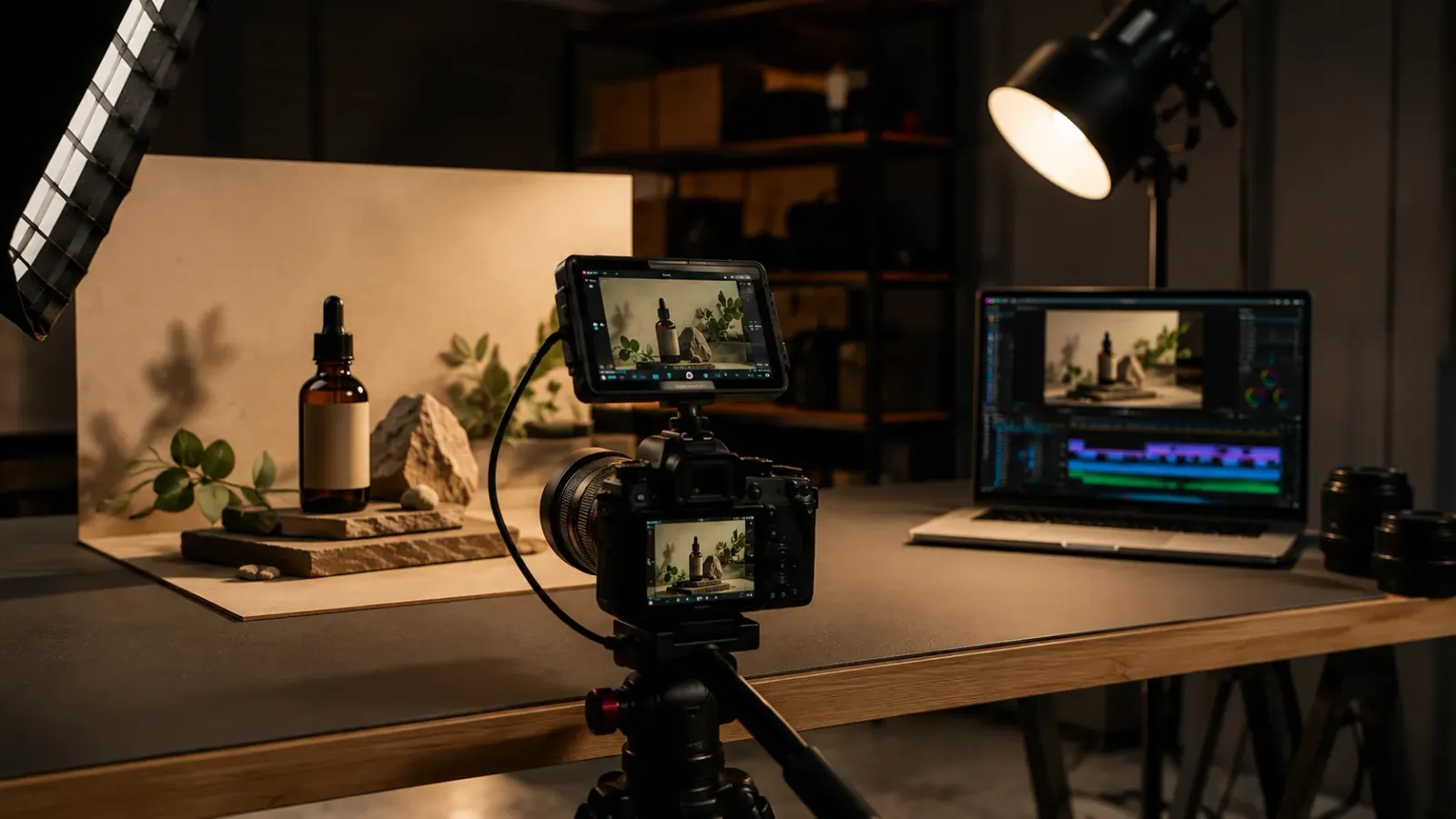
Adding a video to your Shopify product page is not the same as adding a video that lowers bounce rate and increases conversion. Most product videos on Shopify are too long, start too slowly, and are not optimized for silent autoplay on mobile. This editing checklist covers every decision that separates a product video that converts from one that gets scrolled past.
Shopify Product Video: The Editing Checklist That Lowers Bounce Rate
What Makes a Shopify Product Video Convert? A Shopify product video that lowers bounce rate and improves conversion is short (15 to 45 seconds), autoplays silently with burned-in captions or text overlays, shows the product in use within the first two seconds rather than opening on a logo or brand shot, is formatted for mobile viewing where most Shopify traffic arrives, and has a file size small enough not to slow page load time. The editing decisions on each of these points determine whether the video lifts conversion or sits unused below the fold.
Key Takeaways:
Mobile First, Sound Off: Most Shopify traffic arrives on mobile with autoplay set to silent. A video that relies on audio to communicate its core message is invisible to the majority of viewers.
Show the Product in Use Within 2 Seconds: Viewers who see the product functioning immediately are significantly more likely to watch the full video than those who sit through an intro or brand animation first.
File Size Affects Conversion Independently: A product video that slows page load time reduces conversion rate even if the video content itself is excellent. Keep MP4 files under 50MB where possible.
Why Most Shopify Product Videos Do Not Work
Product pages with video convert at 80 to 144 percent higher rates than image-only pages. That statistic is widely cited and broadly true. What it does not tell you is how many of those product videos are actually performing, versus how many are sitting on product pages, technically present, but doing nothing for conversion because they fail at the editing stage.
The most common failure patterns are consistent. The video opens on a logo animation or a slow establishing shot. It runs two to three minutes when forty-five seconds would communicate the same information. It relies on narration that no mobile viewer can hear on silent autoplay. It was shot in landscape and displays as a small horizontal strip on mobile screens. And it loads slowly because the file was never compressed after export.
Each of these is an editing problem, not a filming problem. The raw footage is often fine. What it is edited into is what determines whether the video converts.
The Shopify Product Video Editing Checklist
1. Open on the Product in Action
The first two seconds of a Shopify product video are the most important. A viewer who sees the product functioning immediately is far more likely to watch the rest of the video than one who sees a brand logo, a slow fade-in from black, or an establishing lifestyle shot before the product appears.
Cut the intro. Start mid-action. If the product is a blender, open on the blending. If it is a skincare product, open on the application. If it is a piece of furniture, open on the assembled product in a real room. The same first-second discipline that applies to social ad creative applies here. For the full framework on engineering a hook that earns the next few seconds of attention, see our guide on Hook Rate Optimization: Editing for the First 3 Seconds.
2. Keep It Under 45 Seconds
A product page is a decision environment. The viewer is evaluating whether to buy, not consuming content for entertainment. They want to understand the product quickly and move toward a purchase decision or leave. A video that runs two minutes on a product page creates friction rather than reducing it.
The editing target: demonstrate the core function, show two to three key features or use cases, and end on the product. Under 45 seconds for most products. Under 60 seconds for more complex products with multiple features worth demonstrating. Anything longer should be relegated to a secondary position on the page or a dedicated video section, not the primary product media slot.
3. Optimize for Silent Autoplay
Shopify product videos autoplay silently by default in most themes. This means any information conveyed only through audio is lost to the majority of viewers. The edit must communicate the product's value without relying on a voiceover to do the work.
Burned-in text overlays naming key features as they appear on screen, short caption-style labels showing product specifications, and visual demonstrations that are self-explanatory without commentary all ensure the silent viewer gets the full message. For the data on how caption and text overlay usage affects video engagement, see our research piece Captions vs. Subtitles: Engagement Impact Study.
4. Format for Mobile
Square (1:1) video occupies more screen space than 16:9 horizontal video on mobile, which is where 60 to 70 percent of Shopify traffic arrives for most product categories. A horizontal video that displays as a small strip in the center of a phone screen communicates less visual information and looks less intentional than a square video that fills the product media viewer.
If you are producing one version of the product video, produce it in 1:1. If you are producing both a product page version and a paid social version, the 1:1 product page edit can be repurposed as a Meta feed ad without any reformatting, making it a more efficient production investment.
5. Compress the Export File
Page load time is a conversion rate variable independent of video content quality. A product page that takes more than three seconds to load loses a significant percentage of visitors before the page fully renders. A large uncompressed video file is one of the most common causes of slow product page load times.
The target for a Shopify product video file is under 50MB for a video under 45 seconds. Export in MP4 with H.264 encoding at 1080p. Use a tool like Handbrake to compress the file after export if the source file is larger than this. Test the page load speed with and without the video using Google PageSpeed Insights to confirm the video is not creating a significant load penalty.
6. Show Multiple Angles and Use Contexts
A product video that shows the product from one angle for forty-five seconds misses the primary reason video outperforms photography on product pages: motion reveals product properties that static images cannot. Texture, scale relative to a hand or body, flexibility, brightness, and how a product opens, closes, folds, or assembles are all properties that become clear in video and remain unclear in photography.
The edit should cycle through three to five distinct angles or use contexts within the allotted time, using fast, confident cuts. If the product has a before and after, show both. If it has a specific use context that explains why someone would buy it, show that context explicitly.
Repurposing the Product Video Across Channels
A well-shot product video for Shopify is also source material for paid social, organic Reels and Shorts, and UGC-style ad variants. The same 45-second edit can be trimmed to a 15-second hook clip for Meta ads, reformatted to 9:16 for Reels, and used as a base layer for a UGC testimonial overlay.
For the framework that extracts the maximum number of usable assets from a single product shoot, see our guide on Turning 1 Shoot into 10 Ad Variations: The Remix Strategy. And for the specific format requirements and editing standards for Amazon product listings, which often share filming sessions with Shopify product video shoots, see our guide on Amazon Product Video Editing: The 5 Formats That Actually Convert.
For brands building a library of customer-submitted or creator-style product videos, the same editing approach that makes UGC ad creative authentic also applies to Shopify product video. See our guide on UGC Video Editing for Ads: Scaling Authenticity.
Frequently Asked Questions
Q: What type of video works best on a Shopify product page?
A: A short demonstration video showing the product in use, running 15 to 45 seconds, consistently outperforms static images for conversion rate. It should autoplay silently, show the product from multiple angles, demonstrate its key function, and be optimized for mobile viewing.
Q: Does video on a Shopify product page improve conversion rate?
A: Yes. Research shows that product pages with video convert at 80 to 144 percent higher rates than image-only pages. The improvement is most pronounced for products where size, texture, motion, or use context is difficult to convey through photography alone.
Q: What video format should I use for Shopify product pages?
A: MP4 with H.264 encoding is the most compatible format. Recommended specs: 1080p resolution, under 100MB file size, 25 to 30 frames per second, 1:1 or 16:9 aspect ratio. Keep file size under 50MB where possible to avoid slow page load times.
Q: How do I add video to a Shopify product page?
A: In Shopify, go to Products, select the product, and use the Media section to upload a video file directly or embed a hosted video URL. For better page speed, hosting the video on YouTube or Vimeo and embedding it is often faster than serving a large file from Shopify's CDN.
Turn your product footage into Shopify-ready video, paid social cuts, and Reels clips from a single shoot. Editing Machine delivers all three formats with fast turnaround so you can test and iterate without waiting. Start Creating Now.
More from the Blog
Video Content Repurposing: The 10x Multiplier Framework
Most content creators treat repurposing as something they do when they have time, which means they almost never do it. The 10x Multiplier Framework treats it as the default production model: every recording session is planned with repurposing built in from the start, and every edited asset points toward the next format. This guide covers the full framework and the specific formats each recording type should produce.
Dedicated Video Editor Service: When a Subscription Beats a Full-Time Hire
Most businesses that are considering hiring a full-time video editor have not run the real numbers. When you include benefits, equipment, software licenses, desk space, and management overhead, a full-time junior editor in the US costs $65,000 to $80,000 per year in total. This guide runs the full cost comparison and identifies the output threshold at which a subscription service wins on economics.
TikTok Ad Creative: What the Top 1% Look Like in the Edit
The single most common mistake in TikTok ad creative is making it look like an ad. Over-produced visuals, logo animations, and clean brand voice immediately signal advertising to a platform audience trained to scroll past exactly that. This guide breaks down the editing decisions that make the difference between a TikTok ad that converts and one that gets scrolled past in under a second.
See if Editing Machine is the right fit for your content.
Take 90 seconds to tell us about your goals, content style, and volume. We'll show you which setup fits and exactly where to start.